
.png)
.png)


Introduction to the Platform
Pani Starter and Base are designed so that the platform administrator can configure most of the key parameters for water treatment plants, users, and reporting. You can be visualizing data within minutes, and a complete plant can be set up and configured in less than a day!
The Home Page
The Home Page is where you will see all your plants, add new plants to your fleet, and manage user access to the platform. If you only have a single facility, you will see a single graph, or block.
What's covered in this section of the tutorial:
- How to create and add plant to the Home page
- How to add Users and create their permissions
How to Add a Plant:
Let's begin by adding a plant from the "Home" page.
1. Login to the platform with your corresponding username and password. Once you are logged in, select "Add new plant".

2. Follow the steps in the Plant Setup Wizard to create your plant. Fill out the required fields as you move throughout the wizard.
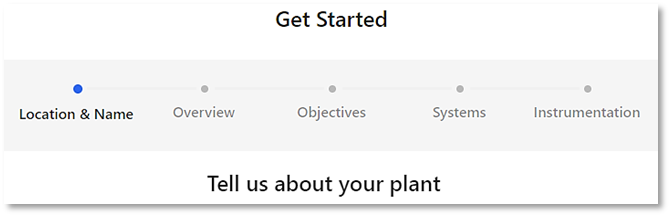
3. Once set up, a new block will appear on the Homepage allowing you to click into the plant and set up its forms, KPIs, and alerts. You can add more plants by going through the same steps.
- for additional information on adding Plants click here 🖱.
How to Create/Add Users:
1. Login to the platform with your corresponding username and password. Once you are logged in, select "Users" from the "Home" page.

2. Select "Add New User". This will activate the user Wizard that walks through the setup process.
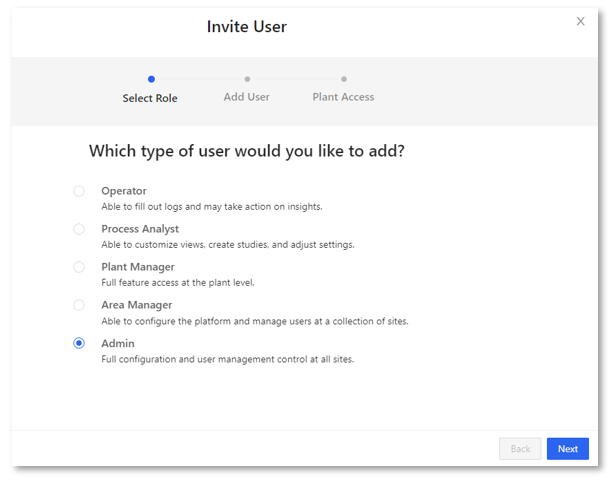
3. You can add as many users as you want by going through the same process. You can also limit their access to various screens, feature editing, and creation capabilities by choosing the type of user.
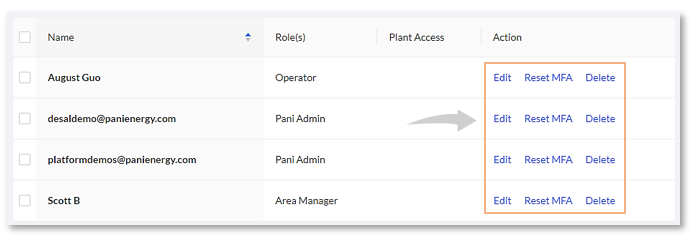
4. You can edit or delete users by clicking the intended action on the right side of their names.
- for additional information on adding and setting up User roles click here 🖱.
Lets review what was covered before moving on to the next section
- We created and added a plant to the Home page using the "Get Started" wizard
- We learned how to add Users , assign their roles, and access to the platform using the "Invite User" wizard
The Data Page
The "Data" page allows plant operators and administrators to capture manual data regarding plant operations. Additionally, the "Data" page is where much of the plant’s reporting and sensor data is set up and consists of Workflows/Log Sheets, Forms and KPIs.
Before we can configure the "Overview" page, we need to setup our workflows, and forms that will get manual data into the system’s database to drive our KPIs.
What's covered in this section of the tutorial:
- How to create a Log Sheet using Form Builder
- How to input & edit data Log entries
- How to create KPIs in KPI Creator
How to Create Log Sheets:
Log Sheets are a subset of workflows and are designed to capture operator input regarding operating conditions or issues at a plant.
1. Login to the platform with your corresponding username and password. Once you are logged in, you will select the plant from the dashboard you wish to modify.
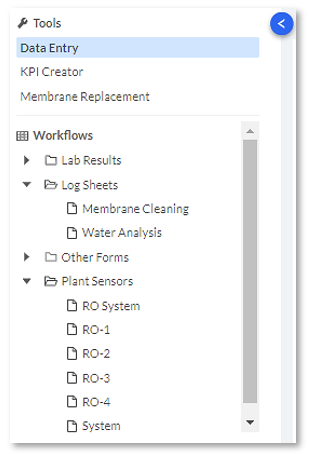
2. Select the "Data" page from the menu, ensuring that "Data Entry" is selected in the Tools sidebar.
3. Locate the "Log Sheets" folder under the "Workflows" in the sidebar. Depending on the plant’s configuration, the options may vary.

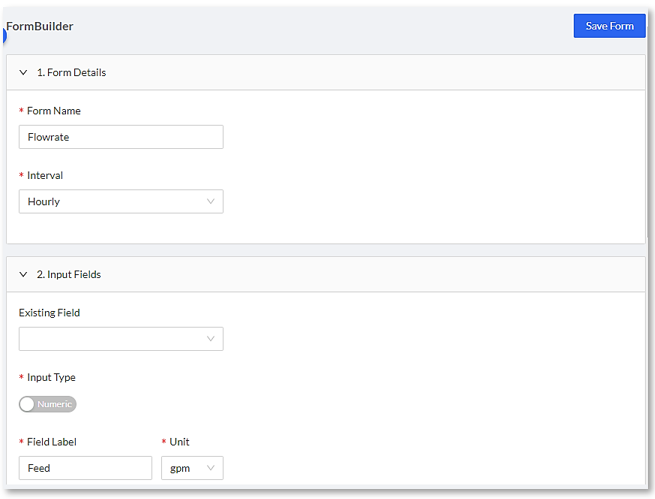
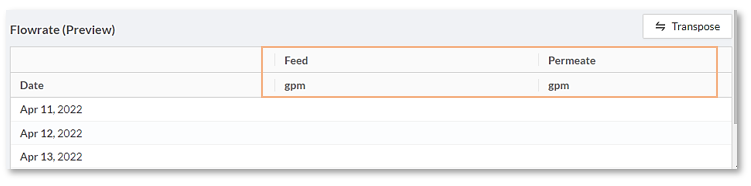
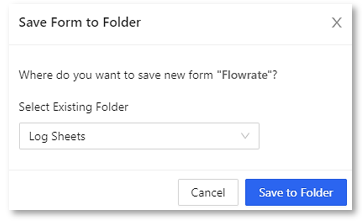
4. You can also create a new form by using the Form Builder. This feature will help personalize your Log Sheets, depending on what is helpful and efficient for your plant. In this example, the Feed, Permeate, and Concentrate and the fields added to your customized "Flowrate form". Save the Form created to the appropriate folder.
-
4. Once the form is available to use, you can now add data to these forms.

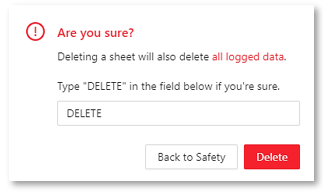
5. You can easily delete any sheets that you wish by clicking the  button. It will prompt you to verify if you want to completely delete the sheet and all its data; type DELETE.
- for additional information on Log Sheets and Notes click here 🖱.
How to Input Log Entries:
Now that you have created a Log Form lets input some information into our log.
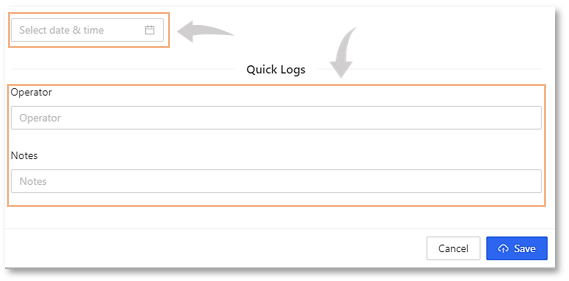
1. Select the Log you want to add a log entry and click "Add Data" button. In this example we selected a Quick Log. The data entry form will open.
2. Select the date and time, and enter your name and any notes/observations into the log, and "Save".
How to Add/Edit data:
In this scenario we want to add data to an existing form and edit another.
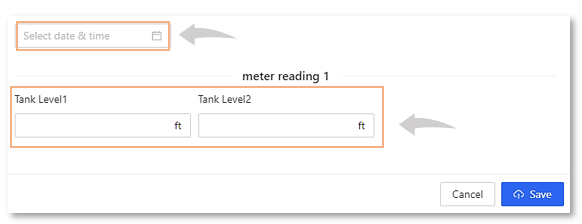
1. Select the form you want to add data to, then click on the "Add Data" button.
2. The data entry widow will open. Select the date and time of the entry, and fill in all of the forms fields and "Save" the entries.
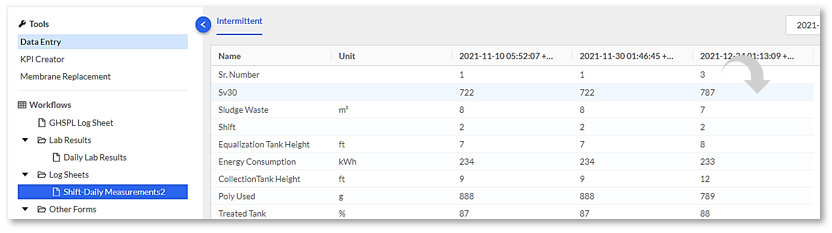
3. To edit existing data, select the form you want to edit, then double click on the entry you want to edit.
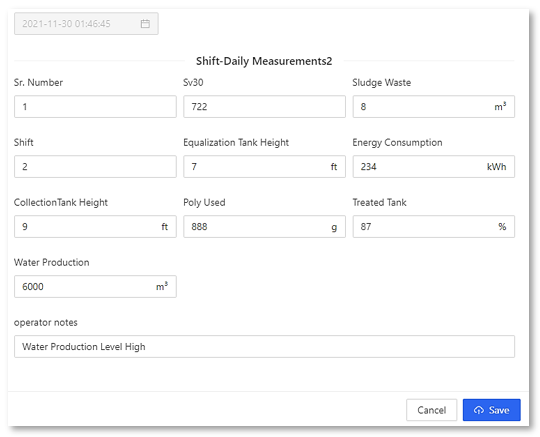
4. The data entry widow will open to the selected data for editing. Once you have edited your data, click the "Save" button.
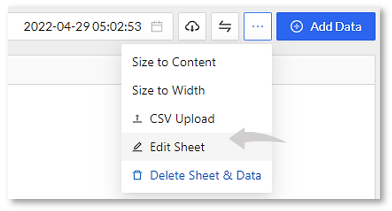
5. To edit the Sheet itself click on the button, and select "Edit Sheet".
- for additional information on using Form Builder click here 🖱.
How to create KPIs using KPI Creator:
1. Login to the platform with your corresponding username and password. Once you are logged in, you will select the plant from the dashboard you wish to modify.
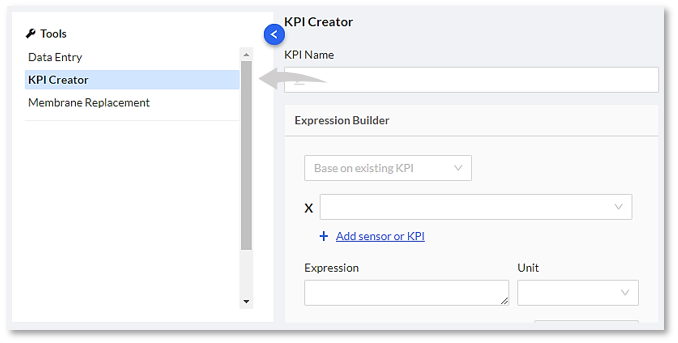
2. Select the "Data" feature from the menu and add select "KPI Creator" from the left side of the page.
3. Fill in the KPI Name and add the sensor/s or existing KPI/s that would be required to build the "Expression". In this example, we can find the differential pressure by subtracting the two pre-existing pressure KPIs. Click "Save". Basic operations (addition, subtraction, multiplication, division), parentheses, exponents, logarithmic, square root (sqrt), natural logarithmic, filtering, etc. are the operations available to use.
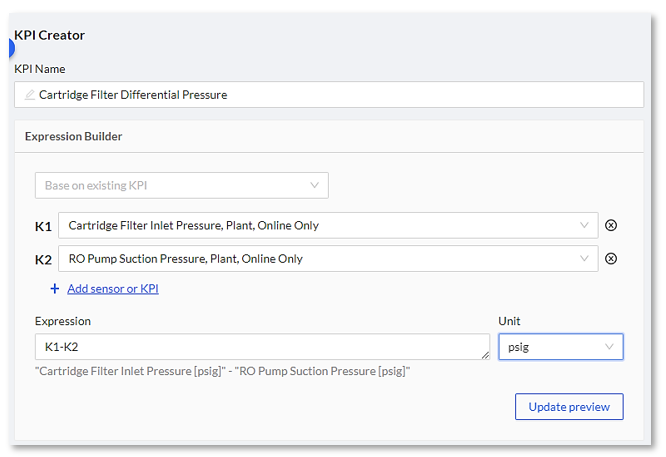
4. You can create as many KPIs as you would like. It is also possible to build on a KPI you have previously configured by using the "Base on existing KPI" feature. This could be helpful when you need to create multiple KPIs with a similar expression, or KPIs with similar inputs.
- for additional information on KPI Creator click here 🖱.
Time to review what was covered before moving on to the next section
- We created a custom Log Sheet using the Form Builder Tool
- We learned to lnput & Edit data Log entries
- We created KPIs using KPI Creator
The Overview Page
The Overview page is where data is visualized and presented for analysis and action. In Overview users have access to pre-built dashboards, or Views, and have the option to create personalized or customized Views. A View consists of one or more blocks whose function is to display data from sensors or KPIs.
What's covered in this section of the tutorial:
- How to add a customized View or Dashboard to the "Overview "page
- How to add a "Block" to your View that will display sensor or KPI data
How to Setup the Overview Page:
1. Login to the platform with your corresponding username and password. Once you are logged in, you will select the plant from the dashboard you wish to modify.
2. Select the "Overview" page from the menu and select "Add View" from the Sidebar menu. A "New View" will be created.

3. Click on the New View to make it the active view that will be displayed on the main screen.
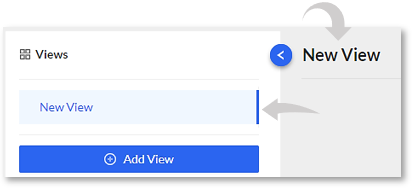
From here you will be able to create and populate your "Blocks" from which to view your data.
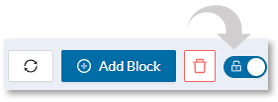
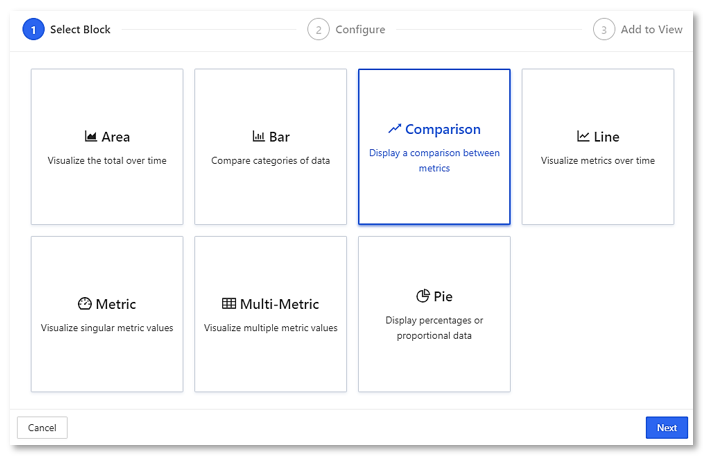
4. Select the "Add a Block"; and select the type of block you want to create. Make sure to toggle the lock option to add/edit any blocks.
-
for additional information on adding blocks to Views click here 🖱.
5. Select the sensor/s or KPIs that is relevant for the block you just created. In this case, a comparison of daily water production percentage differences between two RO trains.
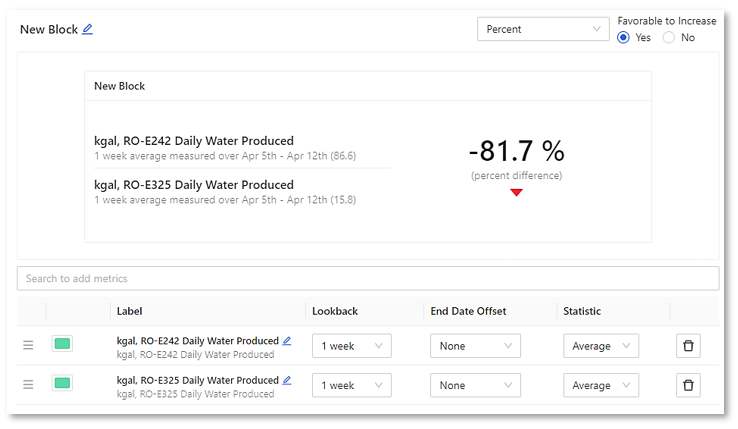
6. You can create as many blocks and views that would be relevant and useful for your plant.
In the "Overview" page below, there are 6 Views, each with it's own defined set of Blocks. The active "Summary" View displays it's "Blocks" of data in various formats.
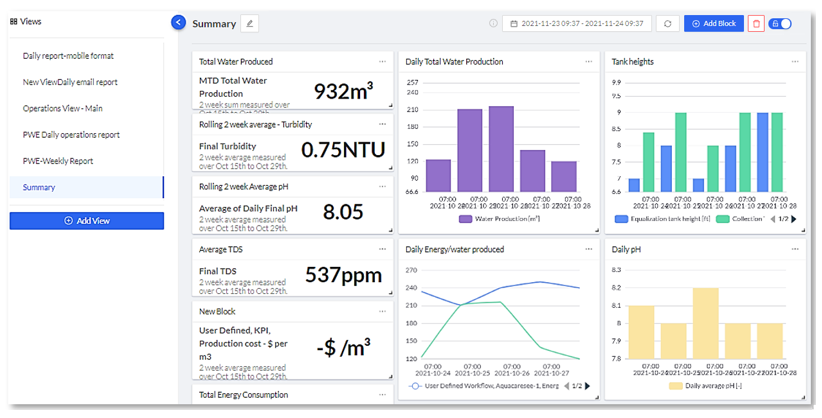
- for additional information on the Overview Page click here 🖱.
Lets review what was covered before moving on to the next section
- We added a View to the "Overview" page where we could populate it with customized data Blocks
- We learned how to select, configure, and add Blocks to our View that will display sensor or KPI data
The Interactive Page
"Interactive" is a tool used to perform thorough root cause analysis for troubleshooting or to assist with supporting optimization opportunities.
What's covered in this section of the tutorial:
- How to search for assests (sensors) that we may wish to examine
- Selecting a date range for performing root cause analysis
- Selecting Sensors/KPIs and set the Aggregation & Y Axis for creating a graph
How to search for Sensors/KPIs:
1. Login to the platform with your corresponding username and password. Once you are logged in, you will select the plant from the dashboard you wish to modify.
2. Select the "Interactive" feature from the menu.

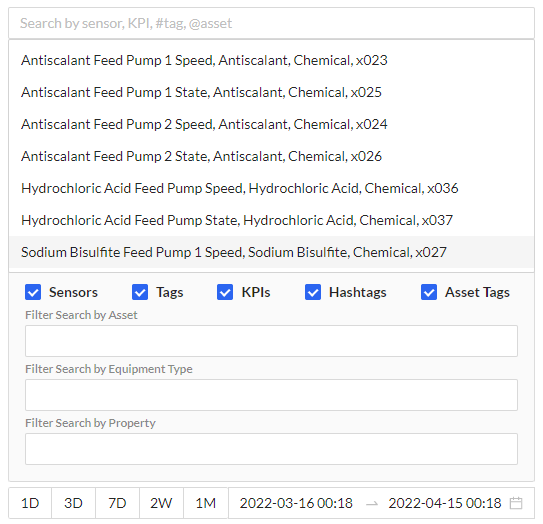
3. Search for assets that you wish to examine by adding an “@” at the front of your keyword. You can also bring up a list of asset tags to search by adding a “#” at the front of your keyword. Multiple sensors and KPIs can be added to the KPI selection as well.
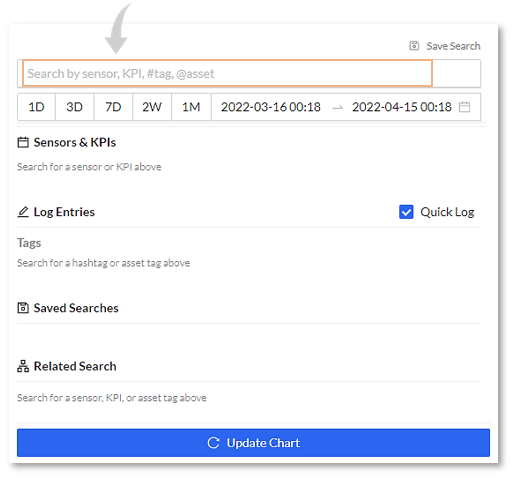
4. You can select the date range and time interval of the data you want to be displayed on the chart by using the date range selector.
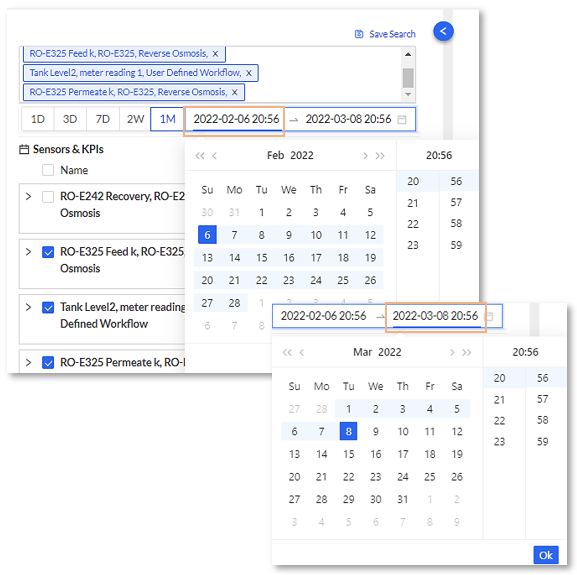
- for additional information on Sensors/KPIs click here 🖱.
How to set up interactive graph metrics and Y-axis:
1. Under the search bar, select the sensor/KPI that you wish to view. This will allow you to see which sensors and KPIs will be included in the interactive graph.
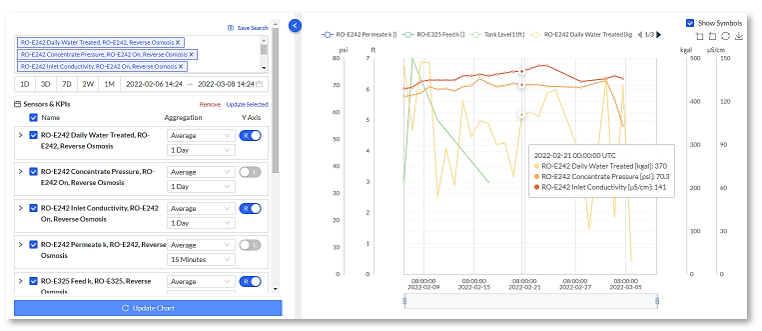
2. Once you have chosen your sensors/KPIs, select the Y-axis labelled sliders to indicate which side of the graph a KPI’s Y-axis scale will appear. In this example some of the graph scales are stacked on the left , while others are stacked on the right side of the graph window. Click "Update Chart" found at the bottom of the page to generate your interactive graph.
for additional information on Y-Axis Setup click here 🖱.
-Refer to KB if want to add other information (search and filter functions; related tag search)—not sure if you would want this here or is it too much information
The Alerts Page
How to Create Alerts:
1. Login to the platform with your corresponding username and password. Once you are logged in, you will select the plant from the dashboard you wish to modify.
2. Select the "Alerts" feature from the menu.

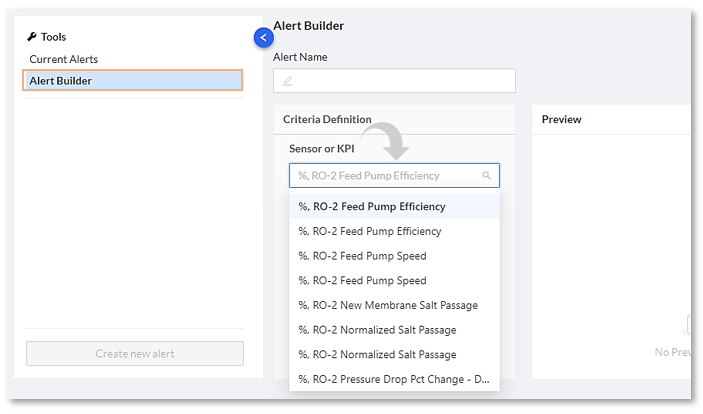
3. Under tools, select Alert Builder option. Select the KPI that will trigger the alert you want to create.
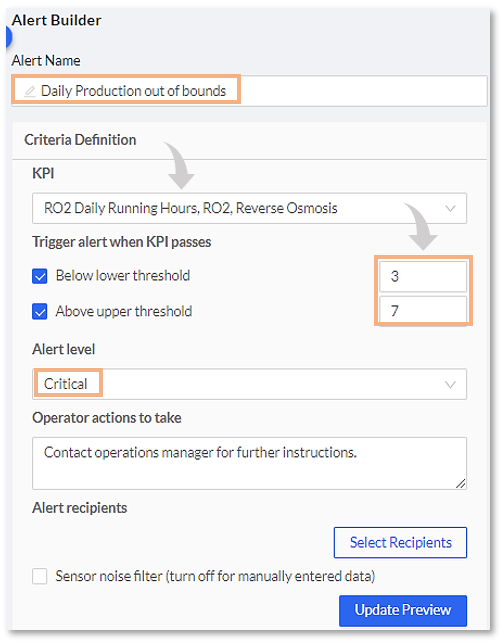
4. You can set the high and low threshold for triggering the alert as well as its alert level. You can also make a note of what action to take when the alert is triggered.
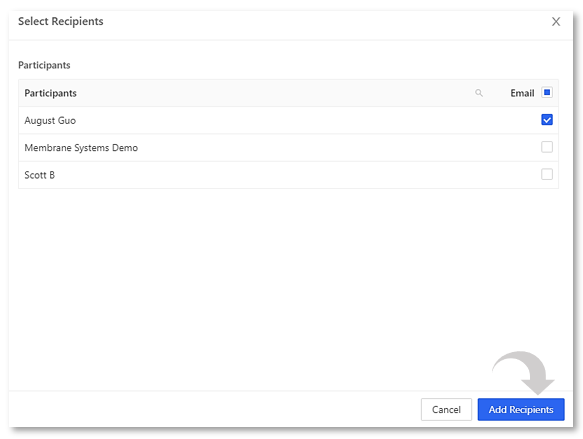
5. Select from the list of e-mail recipients that will receive the notification if alert is triggered and click "Add Recipients".
6. Save the alert with the "Save" button. You will see all alerts created at the bottom of the screen.

for additional information on Creating Alerts click here 🖱.
How to Edit/Delete alerts:
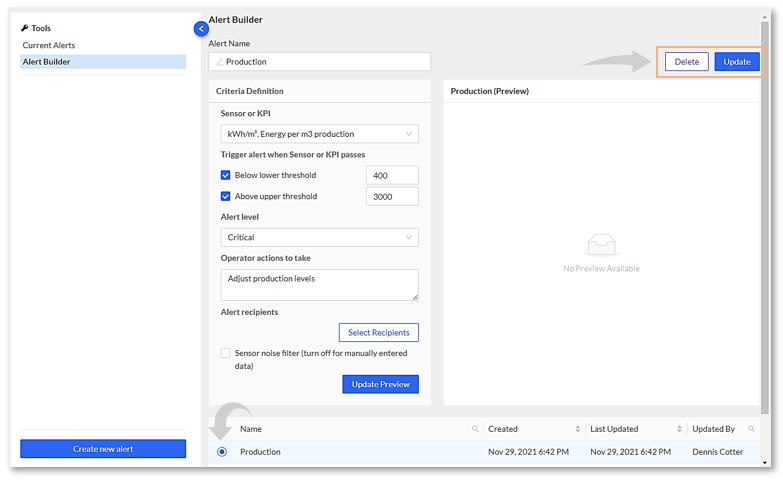
1. You can edit/delete an alert by selecting the desired alert from the bottom of the page. This will allow you to make changes to the alert then click Update. If you want to delete an alert, click "Delete".
for additional information on Editing/Deleting Alerts click here 🖱.
How to Acknowledge an Alert:
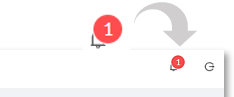
1. When an Alert triggers it generates an alert notification in the upper right of the platform.
2. Determine a course of action on the Alert.
The triggered Alert will indicate why it triggered. In this case "Daily Production is out of bounds". And what the recommended course of action is; again in this case "Contact operations manager for further instructions".
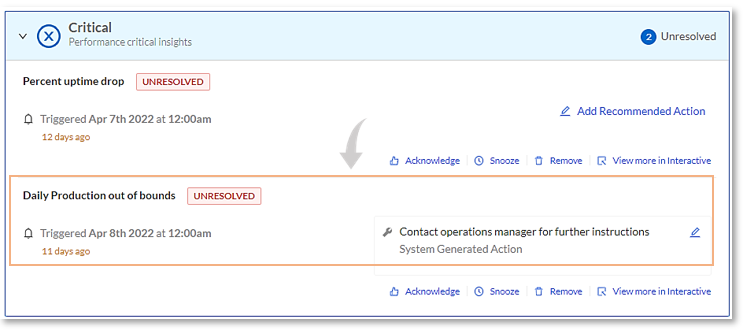
3. Perform one of the following actions on the Triggered Alert: Acknowledge, Snooze, or Remove the alert.

for additional information on Alert actions click here 🖱.

