.png)
.png)



The Home page is where you will see all your plants, add new plants to your fleet, and manage user access to the platform. If you only have a single facility, you will see a single graph, or block, here. Click on any block to visit that facility’s main site. The selected plant will appear on the top menu bar as the active facility. Click here for information on creating block views.

Each block contains a single plant KPI. You can select the same KPI for each plant, or different KPIs for the various facilities. Click here for more information on creating KPIs.
|
|

Edit the Plant Name
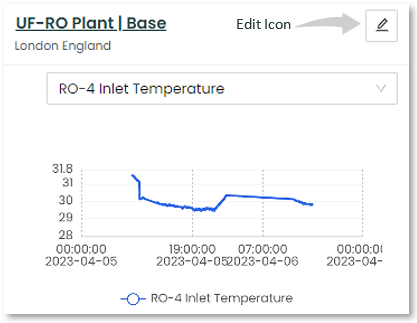
By default, the name you enter when adding a new plant and that plant’s location are displayed on the Home page. The Edit icon (pencil) can be used to change the name of a plant, or to add additional details to the plant’s description.
Time delay between KPI creation and visibility
There can be a delay of up to 20 minutes before a newly created KPI is visible on the Home page pulldown. The delay is typically shorter than this but, allow some time for the system to propagate KPIs to the various screens.
Add a Plant
The Home page also allows you to add a new plant to your fleet. To do this:
1. Select the “Add New Plant” option.
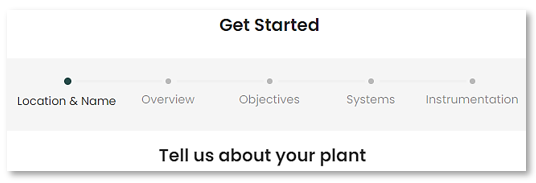
2. Follow the steps in the Plant Setup Wizard to create the plant. The platform launches a plant setup wizard that takes you step by step into setting up a new facility. There are several required fields on each screen that must be filled out as you move through the Wizard.
|
Screens |
Fields |
|
Plant Identification |
|
|
Plant Overview
|
|
|
Plant Objectives
|
|
|
Types of Systems
|
|
|
Instrumentation deployed
|
|
3. Once set up, a new block will appear on the Home Page, allowing you to click into that plant and set up that plant’s forms, KPIs and alerts.
4. Plants are displayed in alphabetical order across the screen. To organize them differently, place a numerical number in front of the plant name (0-9).
5. Once a plant’s KPIs are set up, a specific KPI for each plant can be selected, providing a system-wide view of operations.
Users Tab

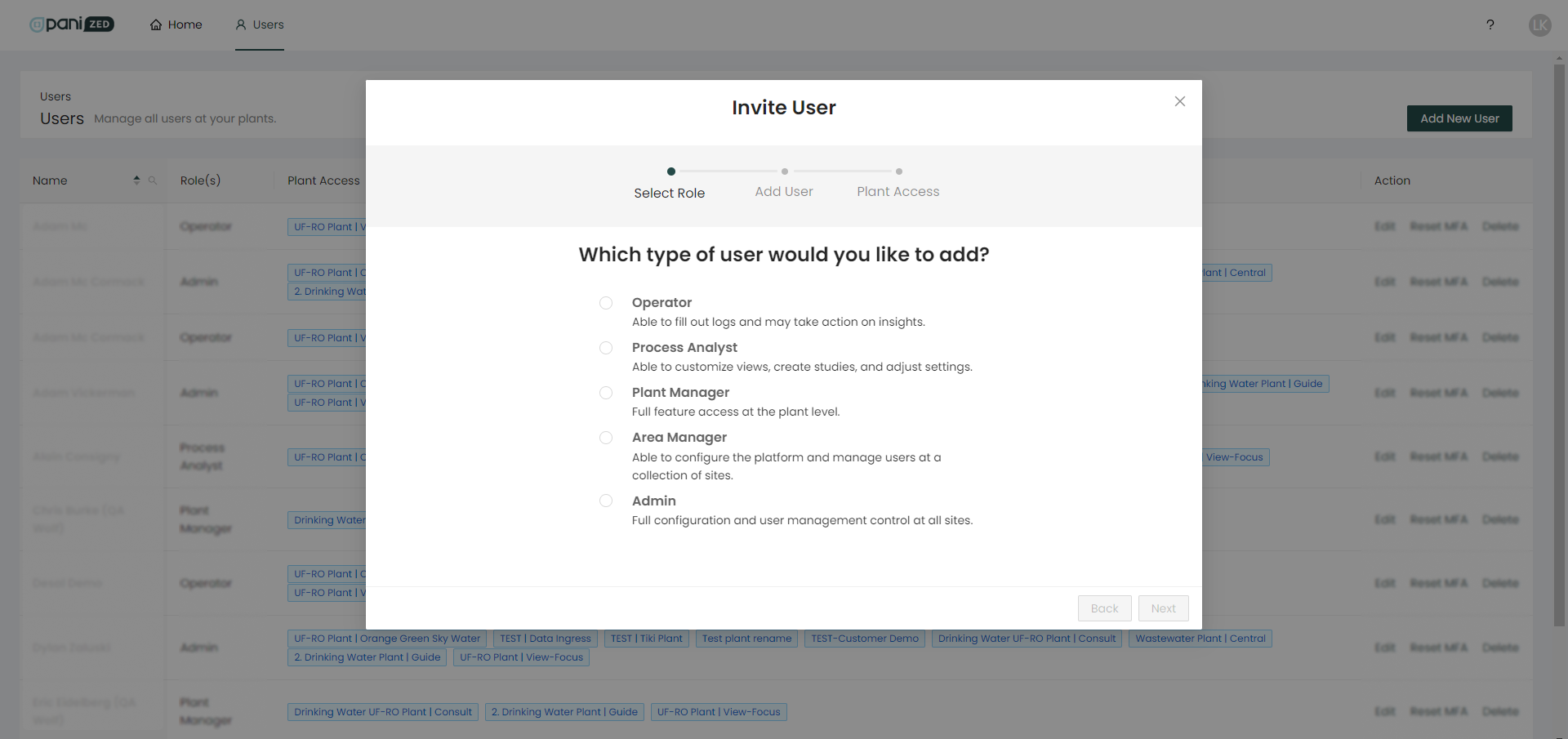
The Users tab allows you to create users within the plant and overall account. Users can be assigned to a single plant or multiple plants. Click the Add New User button in the upper right part of the page, and a pop-up window will appear for you to fill in the necessary information for the new user.
User Roles
Access to various screens, feature editing and creation capabilities are determined by user roles. There are currently 6 roles available on the Pani ZED™ platform:
- Account Owner/Admin
- created by Pani team when the account is initially activated
- cannot be edited and cannot be deleted
- Admin
- the first user a new client needs to create when getting started
- has full configuration control and management of users at assigned sites
- can be edited and deleted by the Account Owner/Admin
- Area Manager
- for a user that is responsible for one or more plants
- can change most aspects of site configuration and manage users at individual plants and at individual sites
- Plant Manager
- similar access rights to the Area Manager, however they can only add users and edit features at their assigned plant(s)
- Process Analyst
- can create new dashboards, analytics, and adjust some KPI settings.
- Operator
- can enter data into the system
- cannot configure reports, views or users
|
|

The following table provides some details on what these user roles can and cannot do in the platform. These can be changed and/or overridden. Plant access is also defined per user when that user is created.
|
Default user roles |
Operator |
Process Analyst |
Plant Manager |
Area Manager |
Admin |
|
Fill out workflows, forms and logs |
Yes |
Yes |
Yes |
Yes |
Yes |
|
Respond to Insights/Alerts |
Yes |
Yes |
Yes |
Yes |
Yes |
|
Save interactive searches |
Yes |
Yes |
Yes |
Yes |
Yes |
|
See one plant |
Yes |
Yes |
Yes |
Yes |
Yes |
|
See multiple plants |
|
Yes |
Yes |
Yes |
Yes |
|
Create custom dashboards/Overview |
|
Yes |
Yes |
Yes |
Yes |
|
Customize forms and user KPIs |
|
Yes |
Yes |
Yes |
Yes |
|
Customize Playbook studies |
|
Yes |
Yes |
Yes |
Yes |
|
Customize Time-to-Service settings |
|
Yes |
Yes |
Yes |
Yes |
|
Manage Users |
|
|
|
|
Yes |
|
Create/add plants |
|
|
|
|
Yes |
Keep in mind, the role labels are descriptive representations of permission levels. If you want a particular operator to be able to edit reports, for example, you would want to set their access to Process Analyst or Plant Manager, since that is the level of access they'd need.
Once a user has been created in the platform, an email will automatically be sent to the email address provided, inviting them to log in.
Multi-factor Authentication (MFA)
When creating a user, you have the option of applying multi-factor authentication. MFA requires that the user provide a cell phone number. When the user attempts to access the site, they will receive a text message on their cell phone containing a verification code in which they will have to type in to gain access to their user account on the platform.
|
|

Admin Users
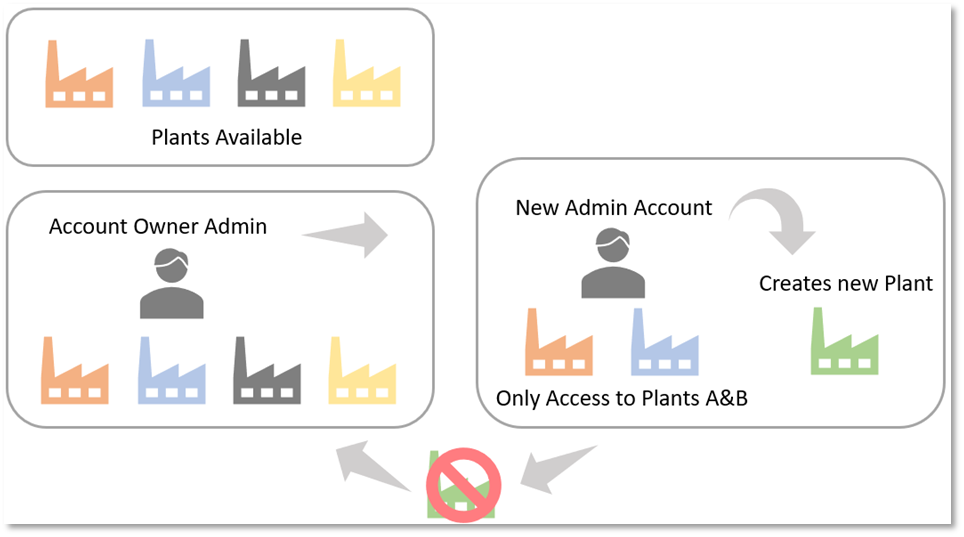
There are a few things to consider with Admin Roles. First, there are two types. The Account Owner Admin and other Admins. The Account Owner Admin is a bit like a "Super admin" that cannot be deleted. This Account Owner/Admin can delete other Admins that were created.
|
|
Below illustrates the various Admin roles and their assignment conventions and limitations:
Need Help?
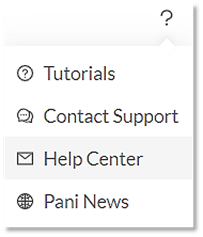
Need help? It’s just a mouse click away on the Pani ZED™ Platform. Just click on the “?” icon located on the upper right corner of the screen, and you will have immediate access to the Help Center. With how-to step by steps, Video tutorials, FAQ’s, and more.