
.png)
.png)


Tacoma Narrows Water Facility - SOP for Daily Rounds
Introduction
Here is some guidance on how to properly take meter readings and sample draws for the Tacoma Narrows Airport water treatment facility.
Related Articles:
Overview
It is essential that all individuals involved in this process exercise care and attention to detail, because inaccuracies can have serious consequences for the quality of our water supply and, ultimately, the health and safety of our community.
When taking meter readings, please ensure that the meters are clean and free from any debris that could interfere with their accuracy. Take note of the exact reading indicated, and record it promptly and clearly in the designated Pani database.
Similarly, when drawing water samples, it is important to follow established protocols carefully. This typically involves thoroughly cleaning the sampling equipment beforehand, and then taking the sample at a specific location and depth within the treatment system.
Again, be sure to check that the necessary sampling equipment is functioning properly, troubleshoot if needed, and record all relevant information accurately and completely.
Procedure
Getting Ready
- Grab the blue box of necessary tools / equipment from the pump house
- Scissors, cloth, 2 testing vials, 1 sample bottle, Hach Colorimeter DR300 + laminated instruction card with sampling procedure, timer
- Open up mypani.com on your phone or tablet and log into the Pani Zed platform
- Select the Tacoma Narrows facility from the home page (by selecting the facility name)
- Head out to your sampling location(s)
Daily and Weekly Rounds Readings
Below are the lists of daily and weekly rounds readings, to be entered into the corresponding forms in Pani Zed.
Well Meter Reading - Daily Rounds
- Proceed to the well and unlock the cover using the B2 key from the key box
- Open Pani Zed on your device
- Select the Data tab from the top of the screen
- Open the Log Sheets folder in the left side menu bar
- Select the Daily Rounds log sheet
- Select the Add Data button in the upper right corner
- In the data entry pop-up form window, enter the date and time
- can use the 'Now' option for current readings
- Proceed to fill in the necessary fields
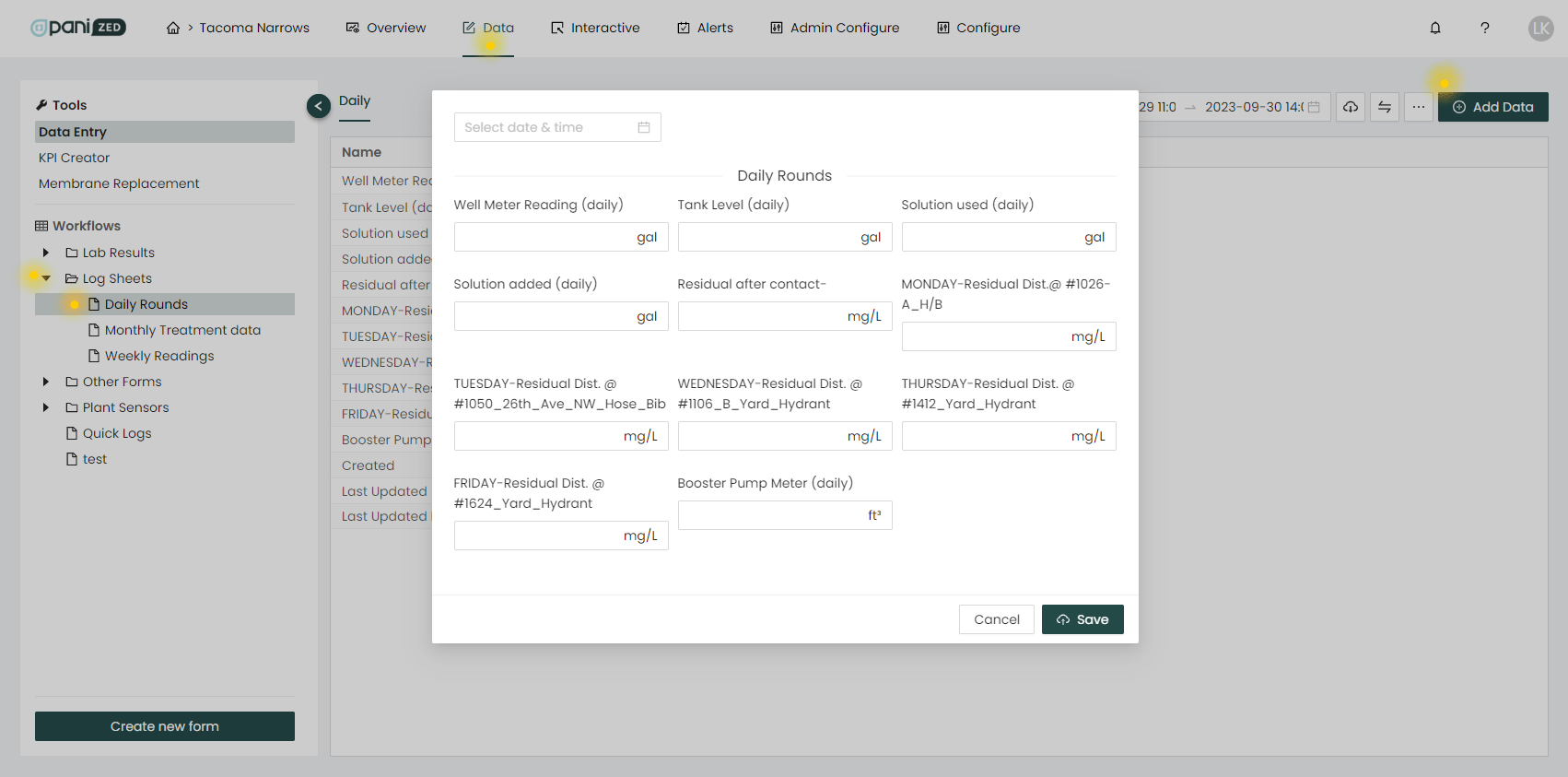
- Read the well meter and enter into the Well Meter Reading (daily) field
- Take the "odo" number first, then the dial number added to the end
- Enter the value as a whole number (no decimal point) as shown in the image below
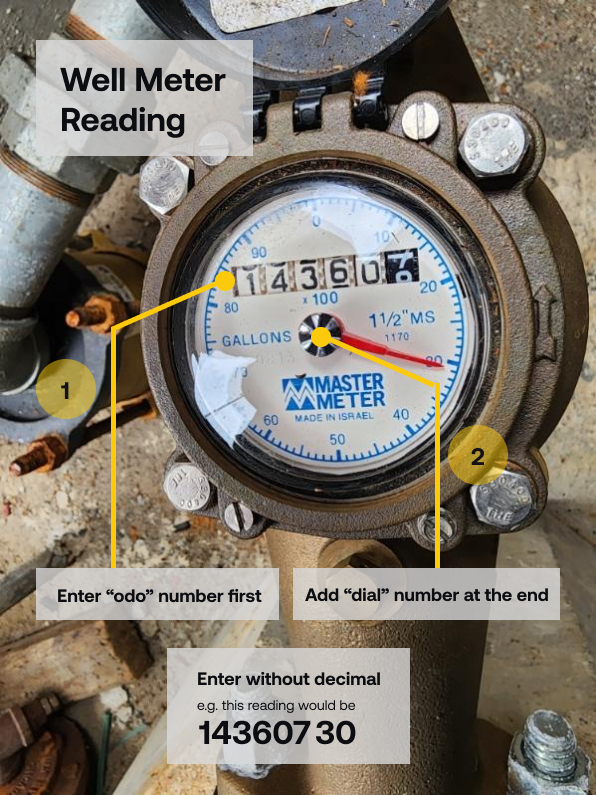
- Enter the value into the "Well Meter Reading (daily)" field
- Double check the entry for accuracy
- Save your entry
Pump House Readings - Daily Rounds Logs
Note, there are both daily and weekly readings from the pump house, to enter into two places: Pani Zed, and the clipboard.
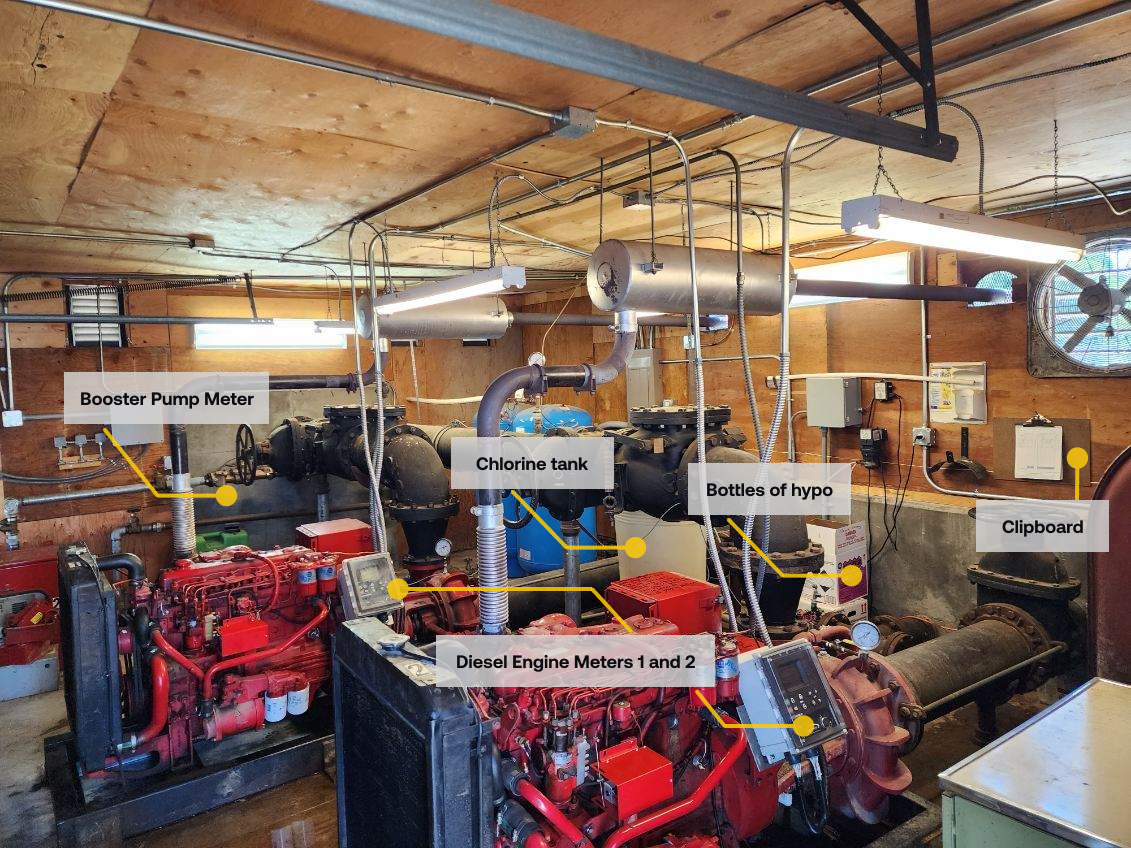
- Proceed to the pump house - the image below provides an overview of key areas to look at:
- Double click/tap to open and add to the desired existing Daily Rounds log sheet (current day, in this case)
- The data entry pop-up form window should appear with the previously filled data
- The data entry pop-up form window should appear with the previously filled data
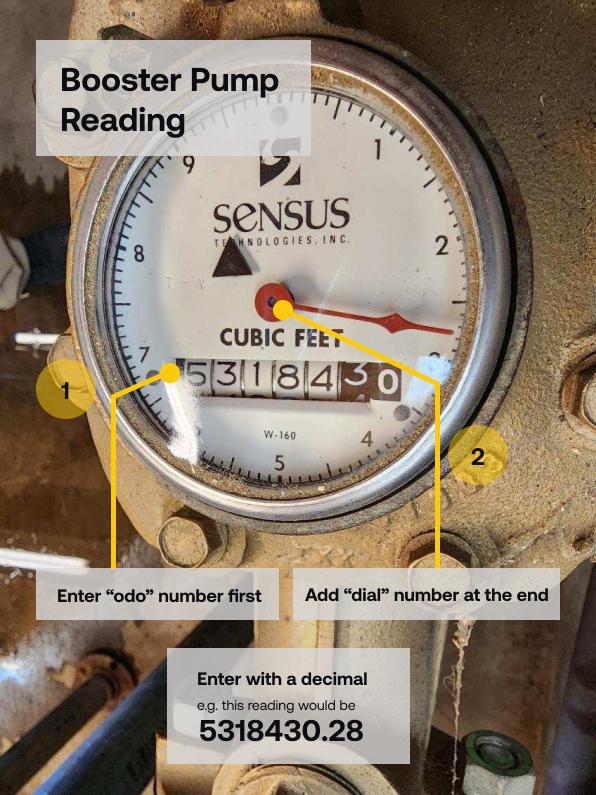
- Take the "Booster Pump (daily)" meter reading
- Enter the value into the "Booster Pump Meter (daily)" field of the log sheet
- Take the "odo" number first, then add a decimal point, then put the dial number after the decimal point, as per image below
- Note, this meter reads to the even hour
- Double check the entry for accuracy
- Save your entry
Pump House Readings - Weekly Readings Logs
- Open Pani Zed on your device
- Select the Data tab from the top of the screen
- Open the Log Sheets folder in the left side menu bar
- Select the Weekly Readings log sheet
- Select the Add Data button in the upper right corner
- In the data entry pop-up form window, enter the date and time
- can use the 'Now' option for current readings
- Proceed to fill in the necessary fields
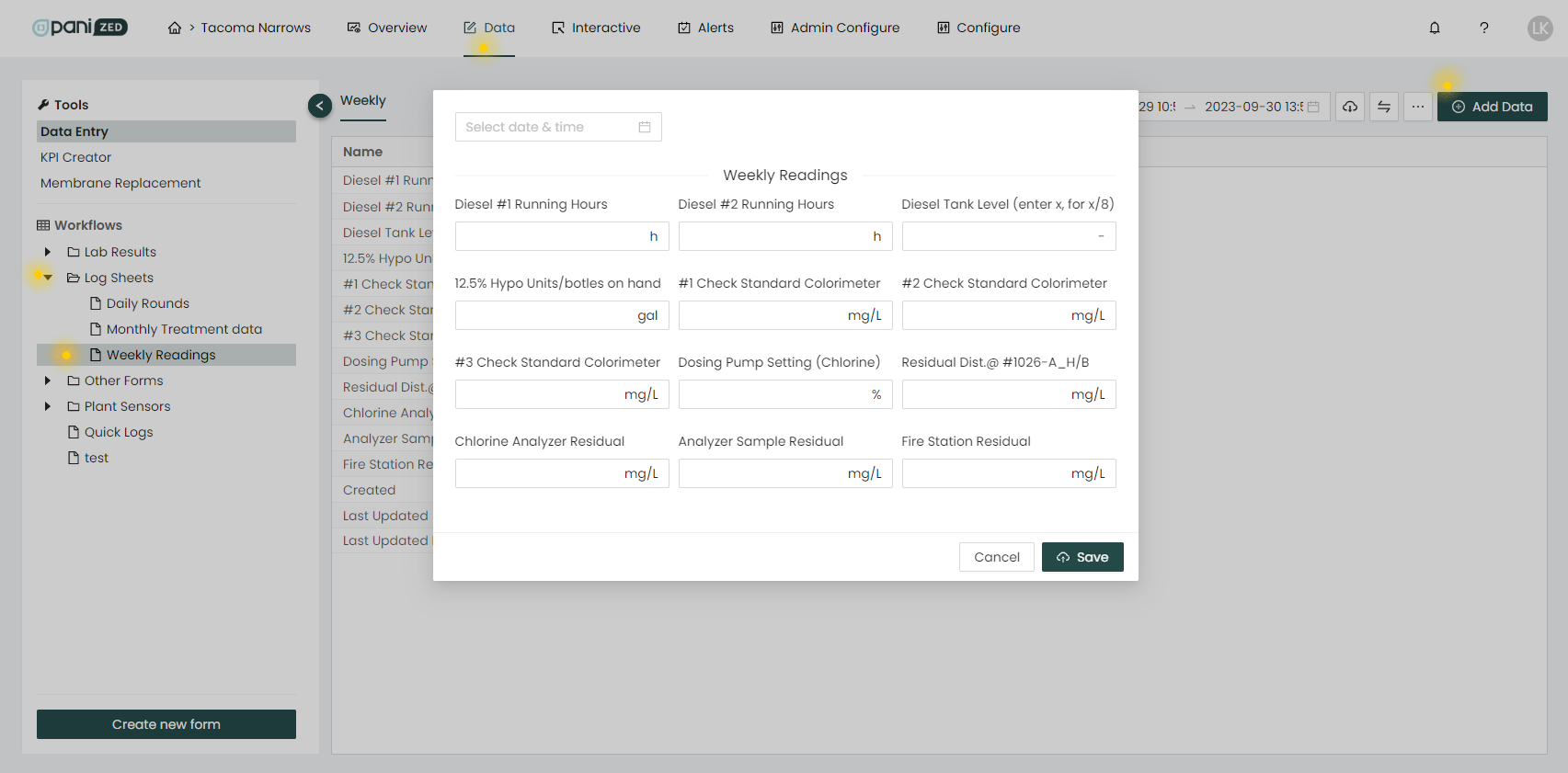
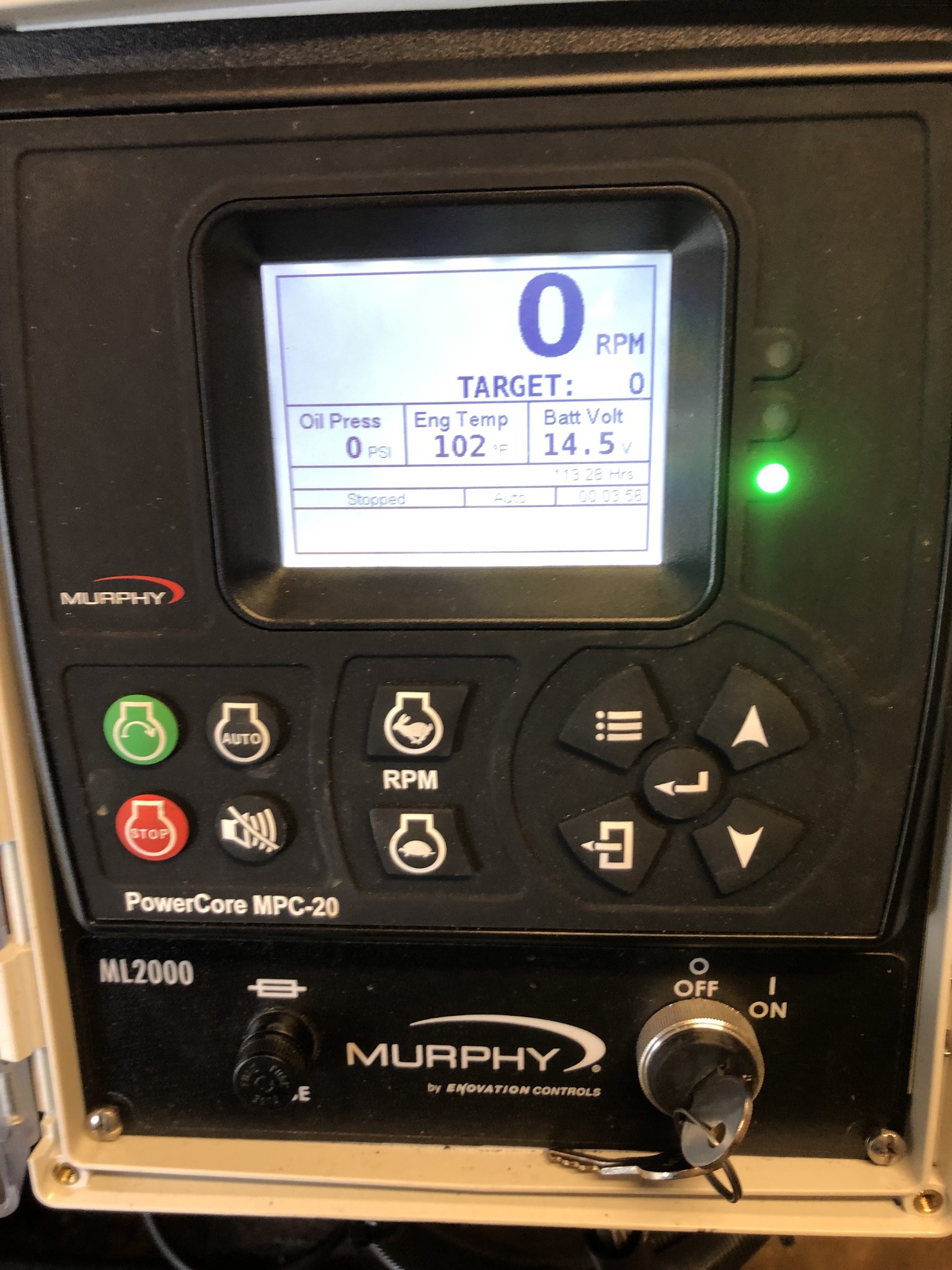
- Check and enter diesel pump running hours for both engines, enter into the "Diesel #1 Running Hours" and "Diesel #2 Running Hours" log sheet fields
- Note, engines are labelled - Engine #1 is back left, Engine #2 is closer to the entry
- Open door, push enter button to wake up screen, see hours in bottom right corner
- These read to the hundredth of the hour, providing finer granularity data
- Double check the entries for accuracy
- Save your entry
- Check and enter the diesel fuel tank level, enter into the "Diesel Tank Level (enter x, for x/8)" log sheet field
- Enter as a fractional value, in eighths
- [image?]
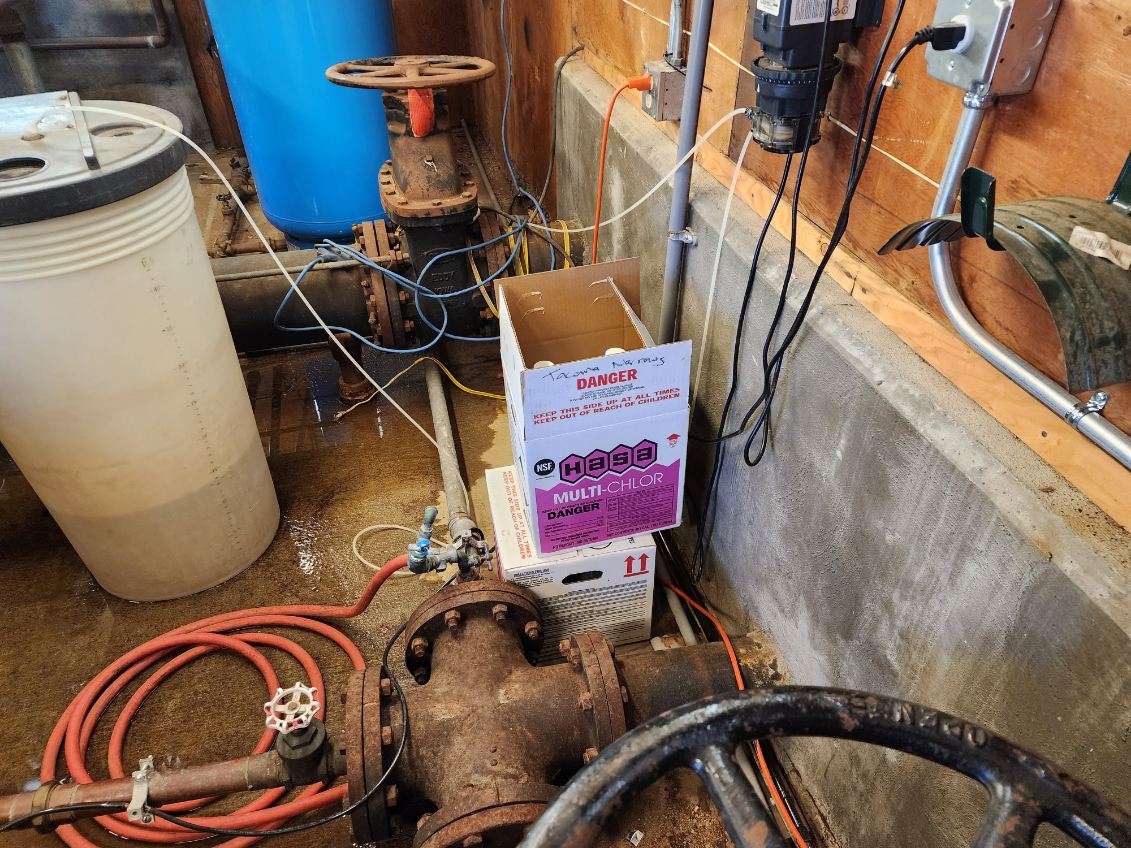
- Proceed to check and read the level of the Chlorine tank and the 12.5% Hypo Units/bottles on hand, enter the values into the respective log sheet fields
- Double check the entries for accuracy
- Save your entry
- #1, #2, and #3 Check Standard Colorimeter samples?
- Dosing Pump Setting (Chlorine) sample?
Fire Station - Weekly Readings Form
- Proceed to the Fire Station sample location
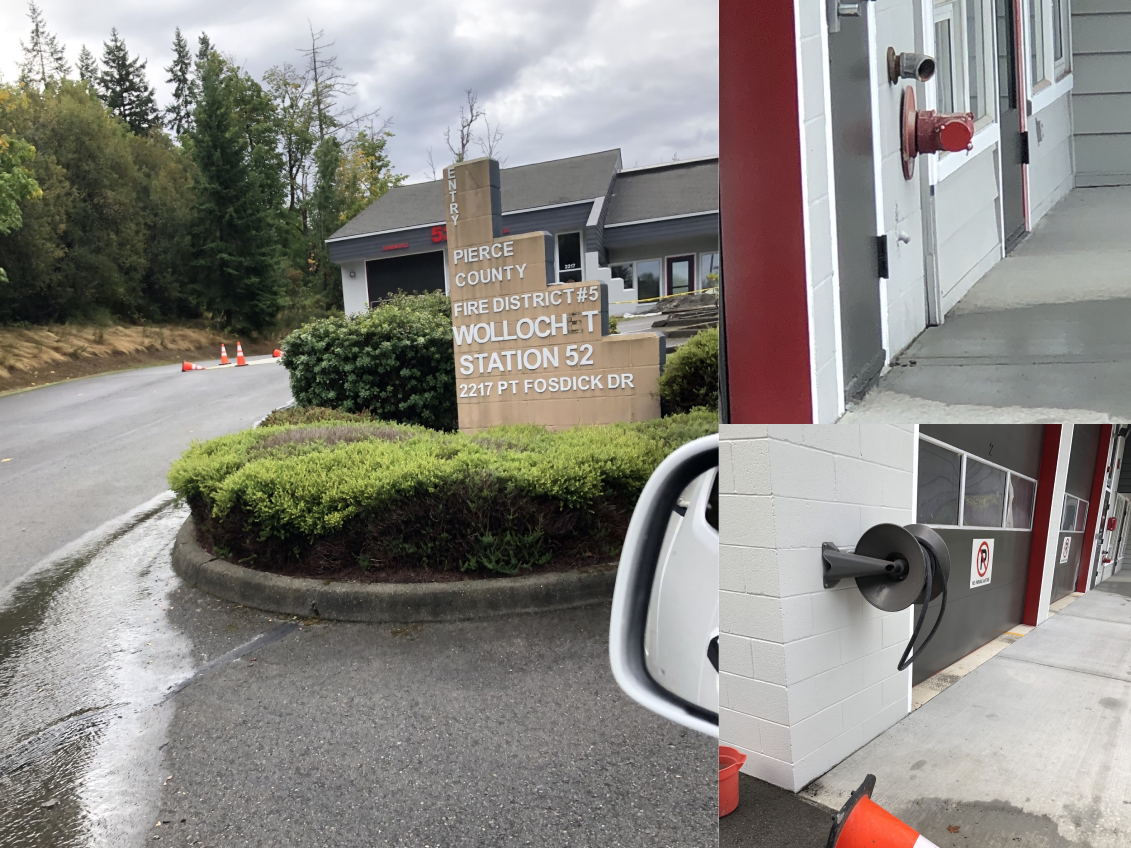
- Double click/tap to open and add to the desired existing Weekly Readings log sheet (current day, in this case)
- The data entry pop-up form window should appear with the previously filled data
- The data entry pop-up form window should appear with the previously filled data
- New: Take the Fire Station Residual reading
- Double check the entry for accuracy
- Save your entry
- New: Take the Chlorine Analyzer Residual from the analyzer panel inside
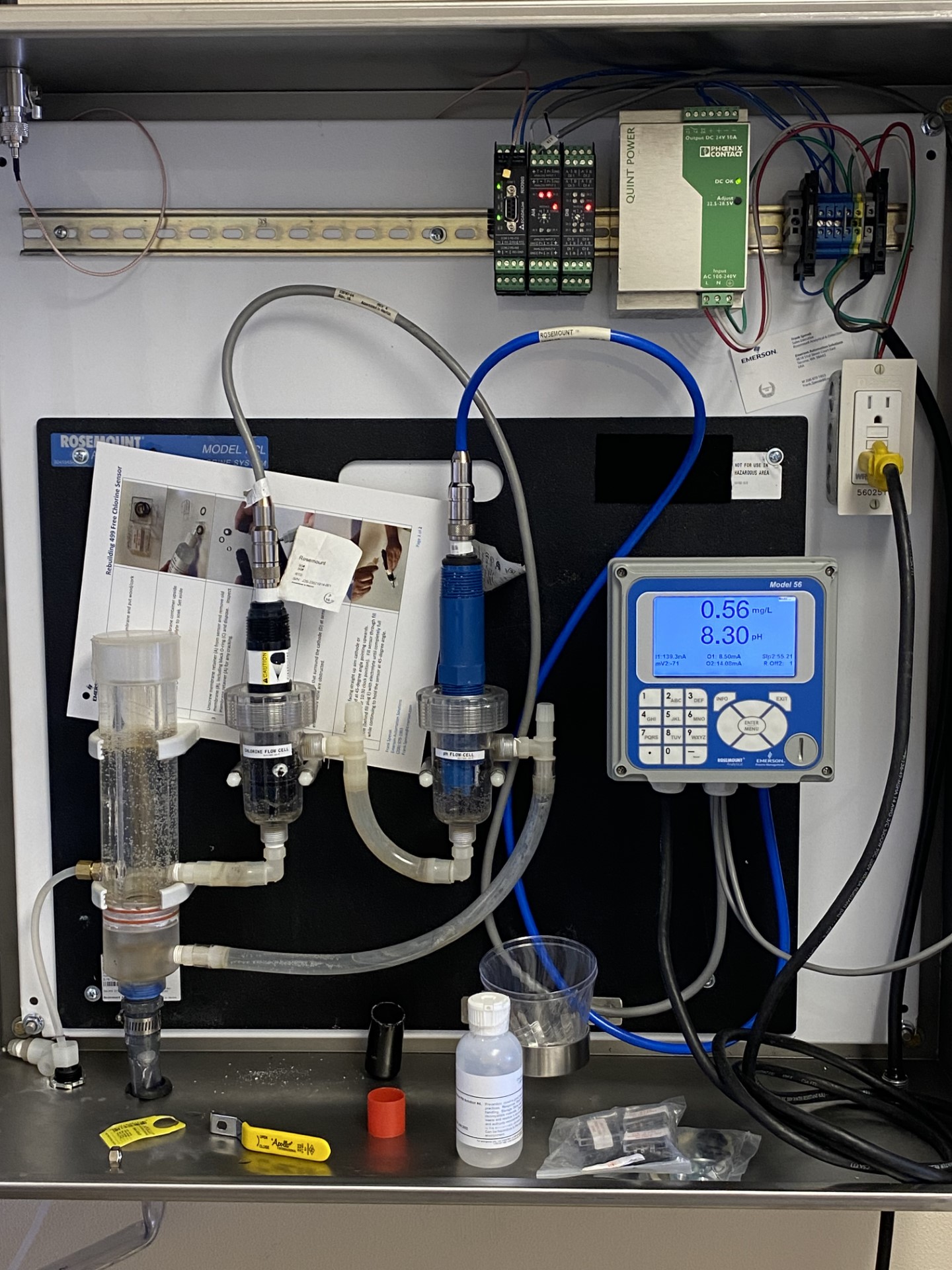
- Double check the entry for accuracy
- Save your entry
- New: Take the Analyzer Sample Residual from the hose in the corner below the analyzer box
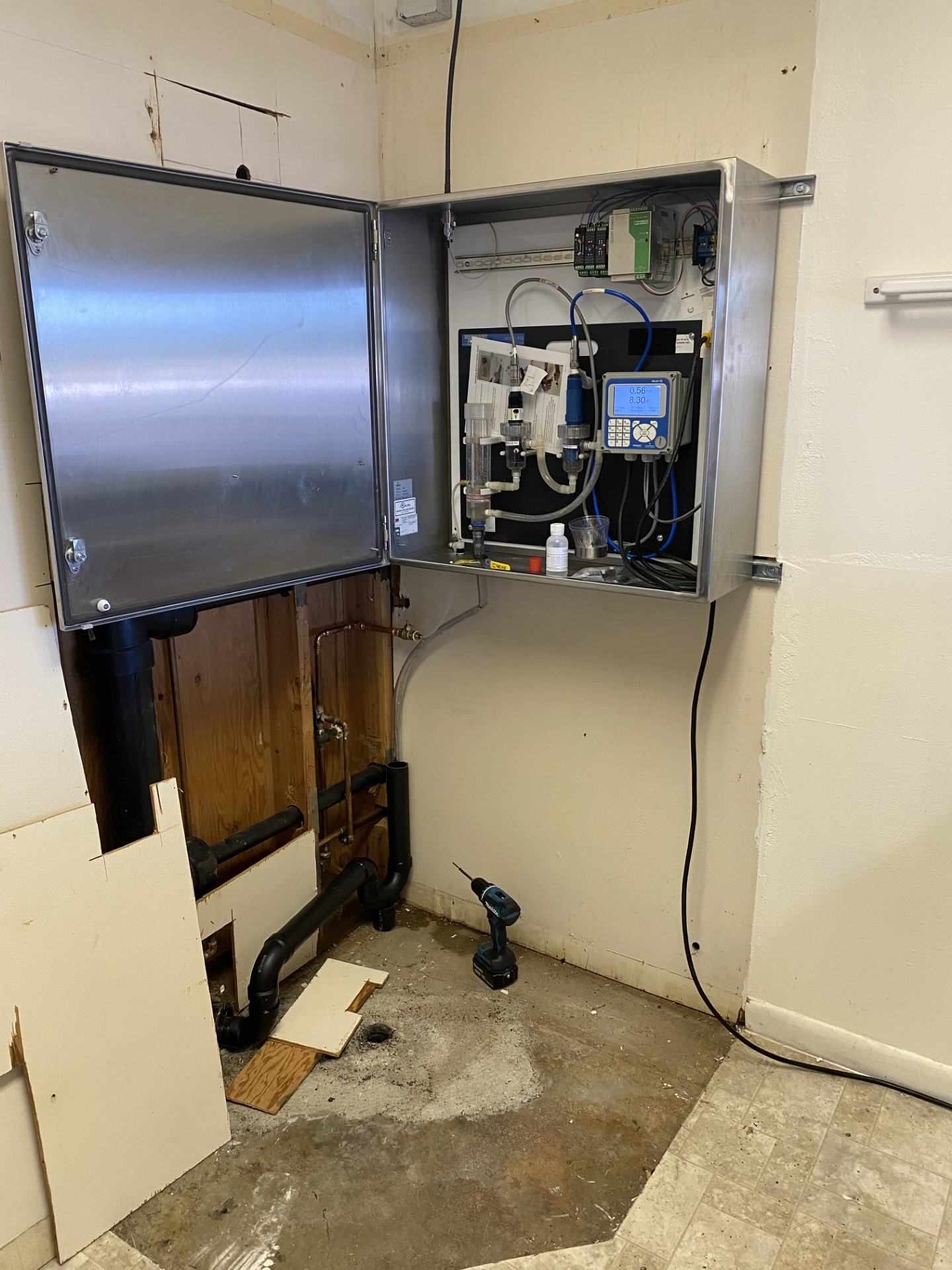
- Double check the entry for accuracy
- Save your entry
Residual Samples - Daily Rounds Form
- Select the Data tab at the top of the page
- Open the Log Sheets folder in the left side menu bar
- Select the Daily Rounds log sheet
- Select the Add Data button in the upper right corner of the page
- In the data entry pop-up window, set the date to Now for current readings
- Proceed to the sample location (see the article on Sampling Locations for details and maps)
- Note, the sample location is day dependent, per the following schedule:
- Monday - #1026-A_H/B
- Tuesday - #1050_26th_Ave_NW_Hose_Bib
- Wednesday - #1106_B_Yard_Hydrant
- Thursday - #1412_Yard_Hydrant
- Friday - #1624_Yard_Hydrant
- Note, the sample location is day dependent, per the following schedule:
- Open sample location, remove hoses, flush line for 5mins (use timer), so that sample is coming from bare faucet
- Take the sample using the 100ML sample bottle
- Test for chlorine with Hach Pocket Colorimeter, following instructions on laminated card in blue tool box
- Record values in Daily Rounds log sheet in Pani Zed
- Reminder: to add to the existing day's entry, double click on that entry and the form should appear with any previously filled fields showing the previously filled data.
- If there's no readable residual, flush faucet for another 5mins and check again
- If there is a readable residual, then enter the value (e.g. 0.50) of the reading into the form field that corresponds to the sample location
- Record values on paper as well, clipboard hanging in pump house
Conclusion
Thank you! By upholding these best practices and procedures, we can help ensure that our small water treatment facility continues to provide high-quality, reliable service to our community.

