
.png)
.png)



The KPIs screen allows you to review and edit aspects of your KPIs.
|
|

To access and enable KPIs, do the following:
- On the Platform, click on the "Admin Configure" page.
- Locate the "KPIs" in the Tools menu on the left of the screen and click on it.
Here you will see the KPIs screen. An example is shown below:
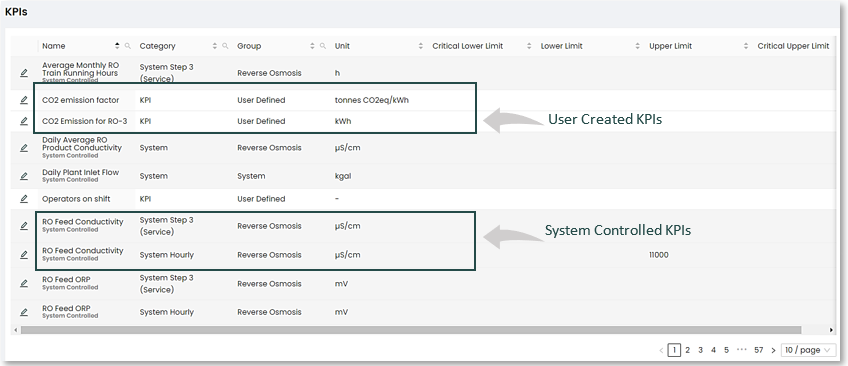
Clicking on the pencil edit icon  located to the left of a selected KPI will reveal a popup window in which you can the edit field contents of the KPI.
|
|

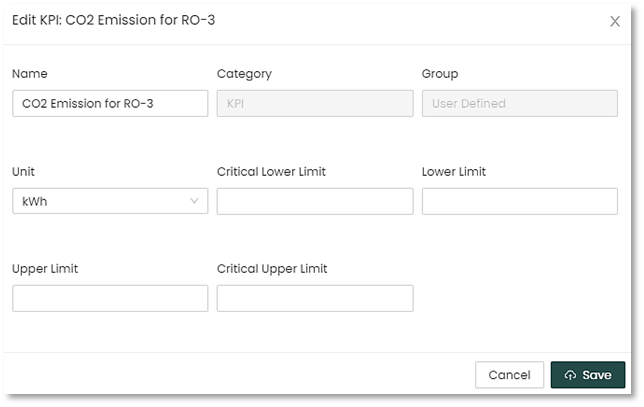
User created KPIs may be further edited dependent on access to non-greyed out fields.
Once editing is completed. Re-save using the highlighted "Save" button.
|
|
 IMPORTANT! Setting Upper and Lower Limits here do not generate Alerts. By default, these limits are mainly used for the purposes of user workflow charting.

