
.png)
.png)



The Data page allows plant operators and administrators to capture manual data regarding plant operations. Additionally, the Data page is where much of the plant’s reporting and sensor data is set up.
The Data page consists of Workflows/Log Sheets, Forms and KPIs.
- Workflows are Pani-designed datasets and inputs for specific water applications. These applications include things like Reverse Osmosis Membrane maintenance, and Raw and Permeate water quality.
- Log Sheets are a subset of workflows and are designed to capture operator input regarding operating conditions or issues at a plant.
- Forms are user-designed data capture tools that get manual data into the system’s database to drive KPIs.
- KPIs are user-defined expressions that take the input from one or more sensors for data visualization that reflects key operating parameters for the plant.
|
|

Tools and Workflows
Data Entry
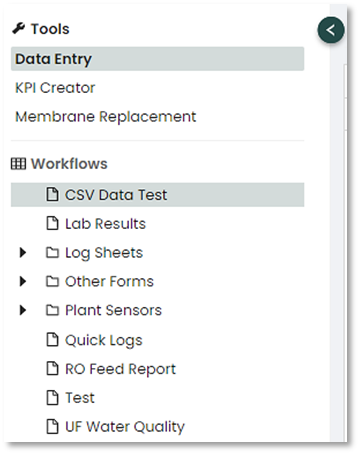
Once on the Data page, select the Data Entry from the left side menu to show Workflows for capturing operation manual data. The exception may be the Sensor Logs if the operation is fully automated with sensors.
Data can be entered by using the Add Data button as shown below, located in the upper right corner of the screen, below the main menu along the top:

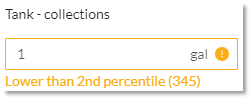
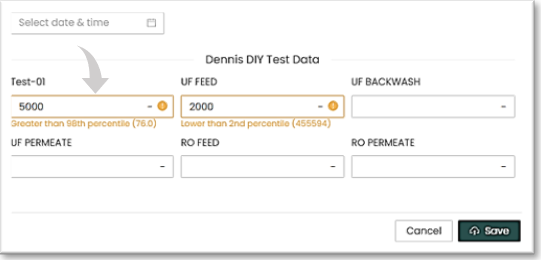
To help mitigate user entry error, there is a built-in data validation feature within the data entry form fields. This feature detects if an unusual value has been entered and indicates a value of a “normal” entry in yellow text below the form field. This can occur for a variety of reasons so is best taken as a caution to double check that the entry has been input as intended, and if so, why this may be showing as unusual.
Plant Sensors
If the plant has automated instrumentation or transmitters, this section will be created by Pani and automatically updated.
Exporting Data
To Export data:
- Select CSV Download (Cloud download icon)

- Select the time range for the export. There is a 1-month limit on data exports. If you need to download many months of data, you will have to perform several exports.
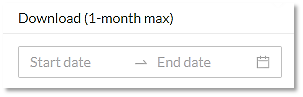
- Once the dates are selected, the download will automatically start, and when complete the following dialog will appear. Click the download link to retrieve the file.
Editing data
You can edit data within the log by double clicking on the log entry. All data entries and edits are captured in the system and can be reviewed by management should entry errors or deletions occur.
|
|

FormBuilder
FormBuilder eases data conversion and capture by allowing operators to create custom input forms that resemble existing manual input forms.
|
The process for using FormBuilder is as follows: Step 1: Build forms to get manual data into the systems database that will drive your KPIs |
|
|
 MPORTANT: Save often for Forms that will contain many fields to ensure that you do not lose any field entries. You can edit the sheet to add more fields at any time, however cannot change the order fields appear in.
Data can be entered directly into the Pani platform or printed out for hard-copy data acquisition. This minimizes or eliminates staff training for data capture/entry. Forms can also be grouped in Folders, allowing for better organization, or grouping of forms by input type (lab reports, sensors, etc.).
Create a new form
- Select the "Create new Form" button at the bottom of the screen.
- Give the form a name.
- Set the data entry *Interval. If the form has multiple time frames, select the longest period for a particular field as the Data Entry field (if you have daily and hourly readings, select Daily)
- Once selected and saved, the *Interval field cannot be edited (as the database and KPIs are based and aligned on the selected *Interval). You will be required to create a new form if you want to change the *Interval from the one previously selected.
Once the form is created, it is time to populate the form with fields. Fields define characteristics of the device used to provide form data. Often these are plant sensors which can be devices or dials read by operators, lab readings/report fields, etc.
|
|

Input Fields: Creating a Sensor
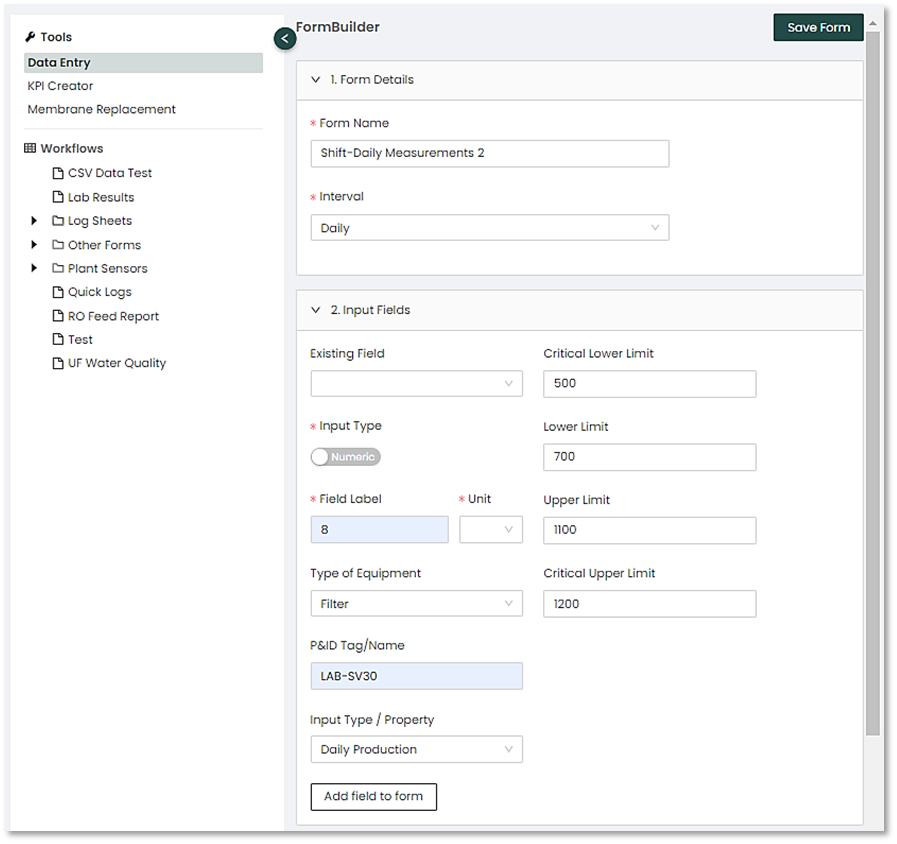
Input fields on a form are based on sensor readings you take at the plant. Sensors and their associated data/readings are used to create KPIs and drive the various reporting features of the Pani platform.
- Enter in the Field Label. This label is used exclusively by the Form to guide operators and technicians on where to enter data. Types of equipment include membrane components, various tanks, pumps, diffusers, etc.
- Enter the Units of measure. There are dozens of unit types to choose from. If you are working with something that has no Units (like pH), you will have to declare no units for the entry. Do this by selecting the dash ( - ) which will signify no units.
- Note: To quickly find a unit type, simply type the first letter or two of the input units desired into the window to refine the list.
- Select the Type of equipment that this measurement or reading will come from (pump, temperature, flow meter, etc.). Again, type a few letters of the equipment’s name, pump, for example, to quickly find the correct equipment type.
- Enter an Equipment label. This label can be the same as a field label or can be something like an asset tag name or detailed description of the asset.
- Enter an Input Type/Property. Things like pressure, conductivity, salt passage, production, consumption, etc., can be entered in here.
- Select the upper and lower limits for the Input Property. These limits do not necessarily have to be manufacturing limits, rather these can be measurement limits. These limits are used to ensure accurate data entry. For example, if you set the lower limit on an Input Property to 100, and the upper limit to 500, if an operator tries to enter a value of 5000 into the field, they will receive an error. The information will still be entered into the form, but the operator has been advised that the reading is outside of the prescribed limits.
|
|

7. Once the input fields have been configured, select the “Add field to form” button. This will generate a preview of what the form will look like. You can edit the field if something is wrong or click on the “Save Form” button in the upper right-hand corner of the screen to save the form.
|
|

Keep adding sensors and fields until your form is complete. New sensors are added to the end of the current form, whether you are adding a new sensor during form creation or adding a new sensor using the EDIT feature. This is done to preserve data integrity if new fields are added. Save the form when you have finished entering in all fields and are happy with the layout.
Input Fields: Drop-down Fields
Drop-downs can be a convenient way to input simple data, such as a 1 or 0 to represent a yes or no/on or off state. To make a form field into a drop-down input type:
- Open the sheet/form you'd like to edit
- Select the ... menu in upper right corner of the page
- Select the Edit Sheet option
- Select the 2. Input fields section to expand this section
- In the top Existing field dropdown, pick sensor you want
- Enable / switch on / activate the toggle to Restrict Inputs
-
In the Selectable values field, type in the restricted input(s) you want (this case, 0 and 1) by typing the value then enter
- Select the button to Update the field in the form
- Select the button in the top right to Save Form
Forms can be saved into distinct folders, or directly to the main screen by selecting the “Don’t add to folder” option. The form will appear in the left-hand menu where you can choose to fill it out, print it, or save it as a PDF to send to someone else.
Clone Form fields/sensors
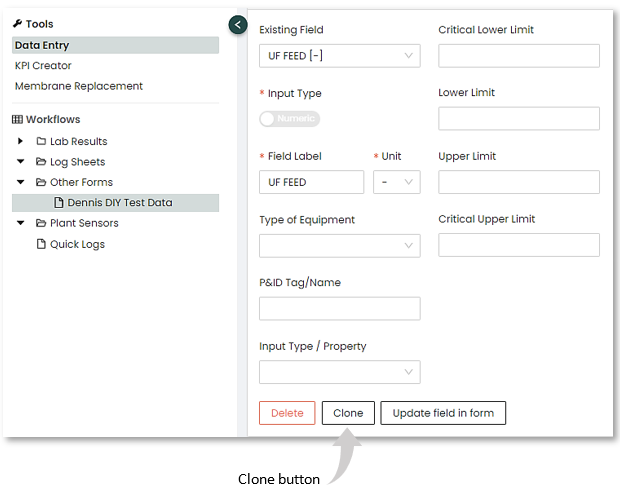
It is possible to clone, or create fields based on previously created fields, within a specific form. For example, if an operator is taking multiple tank readings and all the tanks have similar units of measure, rather than create each tank individually it is possible to clone all the parameters and quickly edit them to create a new form field.
To clone a form field:
- Open the form containing the field you wish to clone.
- click on the Input Fields option and then click on the Existing Field box. A list of the existing fields on the form will appear.
- Select the field that you wish to clone. All the field’s data will now appear on the page.
- Press the Clone button. The word “-copy” will be added to the Field Label.
- Edit the Field Name, Equipment Label and any other information to describe the new field or Sensor.
- Save the new field to the form.
- Save the form.
|
|

The Transpose function
The default view shows dates along the left-hand side of the forms and sensors/reading across the top. Use the Transpose button (double arrows) to switch between dates down the side and across the top.

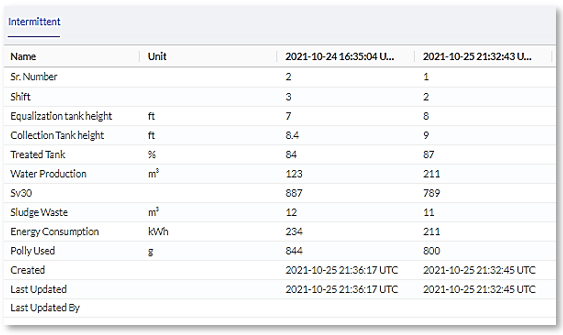
To fill out a form, select the form from the left-hand menu. This will bring up the form. Press the “Add Data” button to view the form entry screen. The Form Entry screen will save the form when completed. Upon saving, form data is written to the Pani Digital database and all graphs and tables in the platform will be updated with the new data.
Editing Form Entries
Just as with Log Sheet and Quick Log entries, you can edit data within the form by double clicking on the form entry. All data entries and edits are captured in the system and can be reviewed by management should entry errors or deletions occur.
|
|

Edit a sensor/form field
Sensors, and their properties within a form, can be edited to change any of their values such as limits or tag information. To edit a sensor or form field:
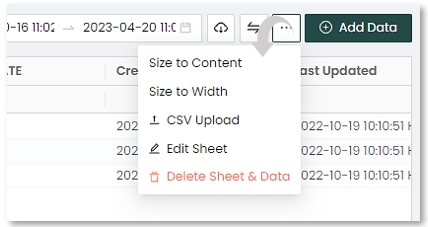
- Select Edit Sheet from the 3-dot icon in the menu bar.
- Open the Input Fields drop down, click on the Existing Field box and select the sensor or field you wish to edit.
Change the values as needed and when finished, select the “Update field in form” button. The field will be updated.
CSV Import/Export
This links to a separate article covering CSV Import/Export.
KPI Creator
This links to a separate article covering KPI Creator.
These logs allow the user to capture operational notes. Designed to replace paper logs and journals, the benefit that these entries have over entries on other systems is that they can be used by the system to provide context to plant anomalies. This information can then be used in future data analysis. Operator Log notes are used in the Interactive pages to provide context to data displayed on the graphs therein.
To create a Quick Log entry:
- Select the “Add Data” button from the top of the screen.
- The following form appears.
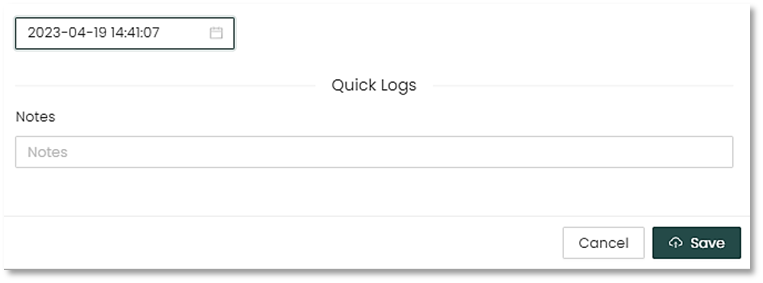
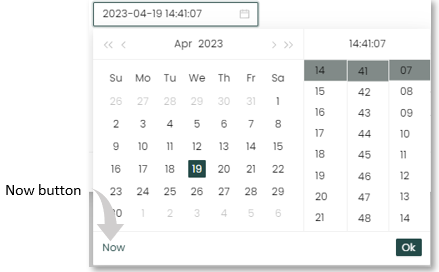
- Select the data end time of the log entry. Use the “Now” button for entries you are recording in real time.
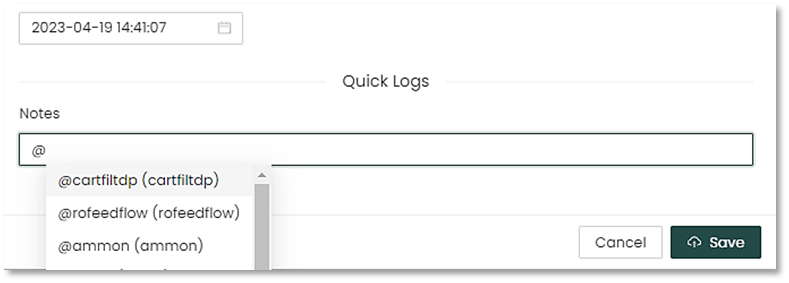
- Begin entering in text for the log entry.
|
|

- This means that as you add additional tags, they will automatically appear when you enter the # symbol in the notes.
- Assets can also be tagged using the @ symbol. This allows you to create a log of issues with a particular pump, for example, and reference that in future logs. When you type the @ symbol in the Notes area, a list of assets will automatically appear. So, if the issue is with a pump, for example, type @pump then select the actual pump for a list of pump assets that appear.
|
|
 IMPORTANT! Use tags for keywords and assets as much as possible. This structured data allows the system’s search function to perform at a high level.
- Below is an example of a log sheet entry.
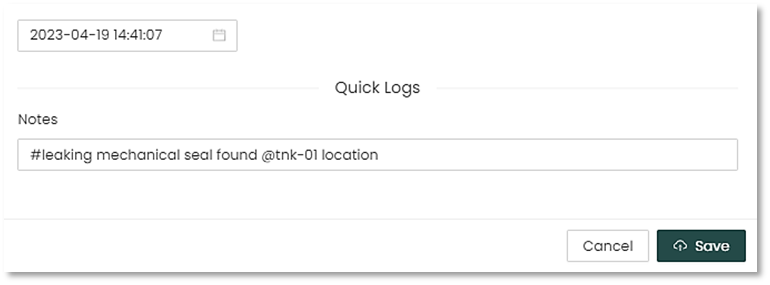
- When the note is saved, it will appear in the Log Sheet like this. Note the tags and assets are highlighted, making identification of problems more apparent.
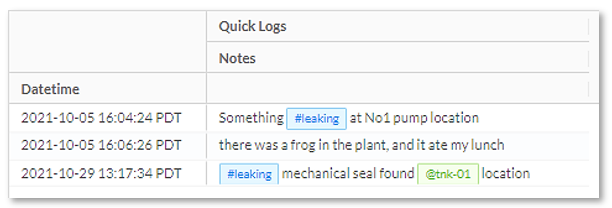
Quick Logs and Log Sheets are great for replacing current paper or electronic logs, and their integration with Interactive and other tools on the platform provide for a deeper understanding of plant operations when things go awry.
(Optional) Membrane/other Workflows
For some implementations, dedicated RO or other workflows may be present. These workflows are process specific and are configured by Pani.
Membrane Swap
The membrane swap allows the user to enter data on membranes that have been swapped in the RO vessels. This helps operations keep track of all swapping activities and keeps an inventory and historical track record.
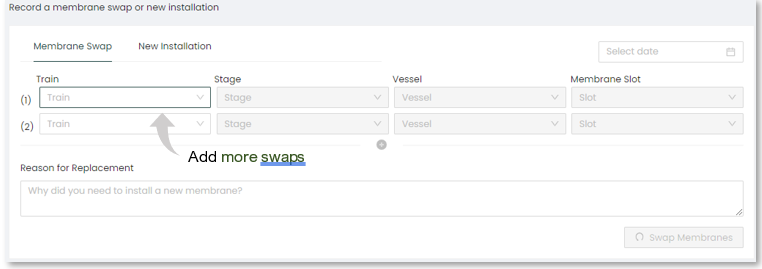
To record a Membrane swap:
- Enter the train, stage Vessel and membrane slot number for the unit you are swapping, and the unit being swapped.
- You can add additional swaps by pressing the “+” button.
- The membrane information (serial number, original installation date) will be carried over so that a complete history and inventory (see below) of the membrane is maintained.
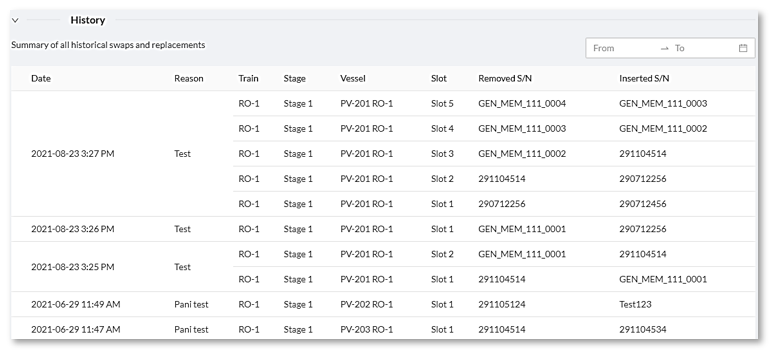
History
You can view a historical summary of membrane swaps and replacements by clicking on the pull-down tab as shown above. You can configure the number of entries per page, as well as scroll through the summary pages.

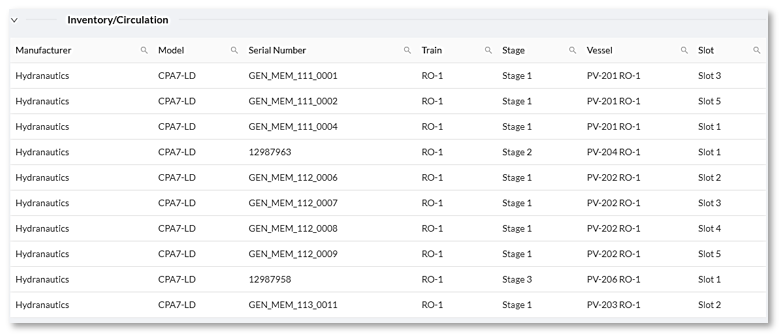
Inventory/Circulation
Inventory and Circulation tab, allows you to display all the units in circulation for use in the system. This view is also configurable.
Membrane Installation
The membrane installation section helps operations manage membrane installations and registers new membranes into the system. This along with “Membrane Swap” will assist operations with membrane management by creating a membrane inventory and activity history.
To enter a new membrane installation, the membrane must be registered in the facility’s inventory. To do this:
- Select “Register Membrane” from the New Installation screen.
- Enter the manufacturer, model, and serial number of the membrane.
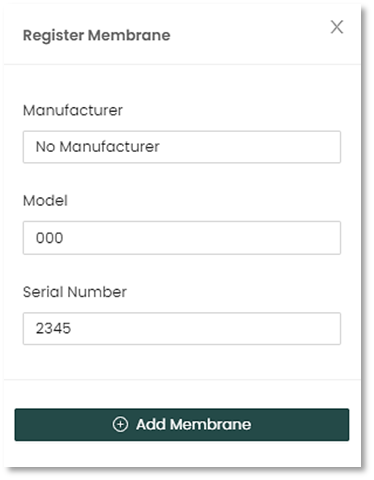
Once registered the membrane can be swapped or installed. To install a membrane:
- Enter the Date for the membrane installation. For ease of data entry, there is a “Now” button that sets the membrane’s date/time to the current date/time.
- Enter the reason for the replacement.
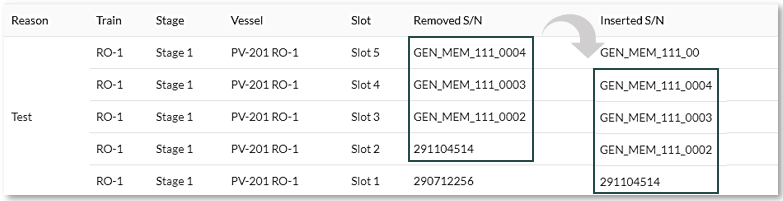
- Indicate if this is a sliding installation. If it is, all membranes in subsequent slots/trains will move down the train. See example below.
|
|

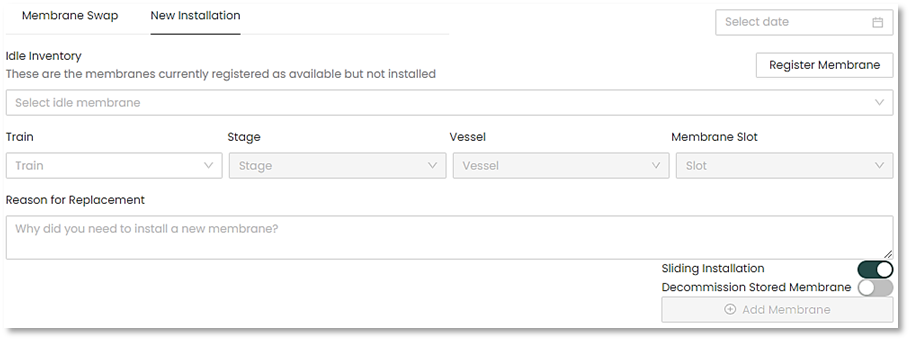
Selecting Sliding installation will automatically move the membranes to new locations, as indicated by the following diagram.
That’s it for the Data section. Remember the flow:
- Build your forms.
- Create your KPIs.
- Set your Alerts (covered later in this manual).
Once this is done, you can start capturing manual data, in addition to sensor data for the platform to process.

