
.png)
.png)


To fill out a Data Entry form do the following steps:
- Navigate to the Data tab at the top of the Pani platform’s main page.
- On the left side of the screen, you will see a menu. Ensure “Data Entry” is highlighted (default).
- Select the form you which to enter data into. “RO Feed Report” in this example. You will see the form with any previous entries on the main screen.
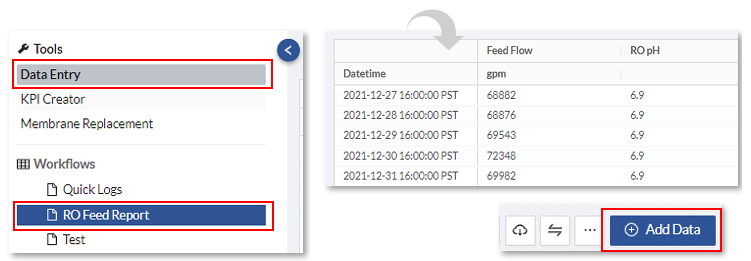
4. Tab over to the “Add Data” button located on the upper right of the main screen and press enter on the keyboard or Click on it to open the selected form where you can enter data.
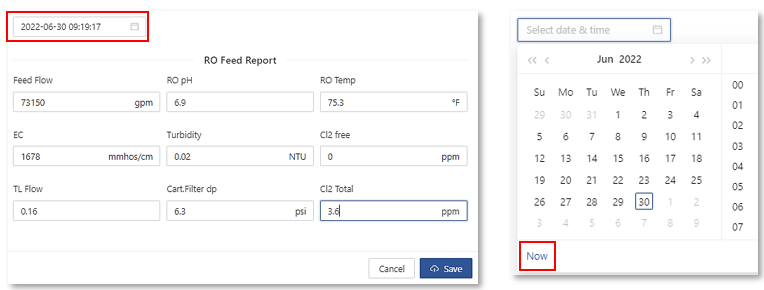
5. Press Tab, then enter on the keyboard or Click on the Select date & time window.
6. Click on the “Now” button located at the bottom of the date calendar to select the current date and time.
7. Tab through the data entry fields, (selected field will be highlighted) entering your data in each selected field.
8. Once filled in, confirm entries and Tab over to the “Save” button, press enter to save your data.
9. You can scroll to the bottom of the main screen to view your recent form entries.
10, If you made a mistake, double click on the entry to open the form once again for editing.

For a one page downloadable PDF of this article see below:


